Manipulations
A manipulation rewrites an image before it is served, based on the resolved profile. Unlike the microarchitecture selection (which only picks an existing manifest — see Small Images), a manipulation changes the image: it can overlay extra layers and mutate the OCI config (entrypoint, cmd, env, …). This is how MetaHub turns one stored image into a purpose-built variant for a given user context.
Two kinds of change
| Change | Example |
|---|---|
| Layer overlay | append extra filesystem layers on top of the base image |
| Config mutation | rewrite Entrypoint / Cmd / Env / WorkingDir / … |
The stored blobs are shared; only the manifest (and the small new layers) the client receives differ per profile.
Model-serving manipulations are model-centric only
A model-serving manipulation — the model/<name> (weights) and
config/<name> (serving config) pair that Model Injection
creates — only applies to a model-centric pull (models/<name>:<quant>).
Pulling a plain collection image under the same model profile serves it
un-injected; the model only composes when the pulled tag is the model.
Every other manipulation (like glow-extended below) applies to any pull
under the profile that selects it.
Example: the glow-extended profile
The glow-extended#1.5.0 profile overlays a help/“glow” layer set onto
qnib/ftest and rewrites the entrypoint so the container renders a help
page before running its real program.
First, for reference, pull with a plain microarchitecture profile — no manipulation, just the base image:
$ echo hub | docker login --password-stdin -u 'meta/cpu#zen3' metahub-registry.org
Login Succeeded

$ docker pull --platform=linux/amd64 metahub-registry.org/qnib/ftest:latest
$ docker inspect metahub-registry.org/qnib/ftest:latest
"Config": {
    "Env": [ "...", "ORG_SUPERCONTAINERS_HARDWARE_CPU_TARGET_MICROARCH=zen3" ],
    "Cmd": [ "/usr/bin/entry.sh" ],
    "WorkingDir": "/"
},
"RootFS": {
    "Layers": [
        "sha256:8d78b2117a5b...",   // base layer
        "sha256:7b386a2af9d0..."    // base layer
    ]
}
No Entrypoint, 2 layers — this is the unmanipulated image.
Now pull the same tag with the glow-extended profile:
$ echo hub | docker login --password-stdin -u 'meta/glow-extended#1.5.0' metahub-registry.org
Login Succeeded

$ docker pull --platform=linux/amd64 metahub-registry.org/qnib/ftest:latest
$ docker inspect metahub-registry.org/qnib/ftest:latest
"Config": {
    "Env": [
        "...",
        "GLOW_SIMD=AMD64",
        "HPC3_HELP=/usr/share/hpc3/help.md"
    ],
    "Entrypoint": [ "/usr/bin/hpc3-help" ],
    "Cmd": [ "/usr/bin/entry.sh" ],
    "WorkingDir": "/"
},
"RootFS": {
    "Layers": [
        "sha256:8d78b2117a5b...",   // base layer (shared)
        "sha256:7b386a2af9d0...",   // base layer (shared)
        "sha256:299f00e0a2f7...",   // glow layer
        "sha256:79c3e33a2c3d...",   // glow layer
        "sha256:5c33e89e00ee..."    // glow layer
    ]
}
Same :latest tag, but the served image now has:
- 5 layers instead of 2 — the three glow layers overlaid on the shared base.
Entrypoint: /usr/bin/hpc3-help— injected by the manipulation.Cmd: /usr/bin/entry.sh— the image's original program, preserved.- extra env (
GLOW_SIMD,HPC3_HELP) the help layer needs.
What the rewritten entrypoint does
With Entrypoint=[/usr/bin/hpc3-help] and Cmd=[/usr/bin/entry.sh], running the
container flows as:
docker run …/ftest:latest
  → /usr/bin/hpc3-help /usr/bin/entry.sh
      → renders the help page once (glow $HPC3_HELP)
      → exec /usr/bin/entry.sh   # the image's intended program
The help renders, then control hands off cleanly to the original program — the entrypoint is prepended, not replaced wholesale.
Running it
Pull and run the manipulated image and you see the overlay take effect at runtime — the help page renders, then the original program runs:
$ docker run --pull=always --platform=linux/amd64 -ti --rm \
    metahub-registry.org/qnib/ftest:latest
latest: Pulling from qnib/ftest
Digest: sha256:85ee98882f06372107584548cc3dbc5ecc9faf332db04241133e238fcbbc349e
Status: Image is up to date for metahub-registry.org/qnib/ftest:latest

   HPC3 Help

  This message is the default message found in /usr/share/hpc3/help.md.

  Either replace that file or change the environment variable HPC_HELP to
  render a different markdown file.

>> This container is not optimized for a specific cpu target
The HPC3 Help block comes from the glow layers (the glow binary +
help.md, added by the manipulation); the final line comes from the original
entry.sh the overlay execs into.
Why overlay layers are powerful
Because a manipulation adds real filesystem layers, it can inject anything an image needs — without rebuilding the upstream image:
- Config files — drop in a tuned
help.md, a site config, certificates, policy files, etc. (here,/usr/share/hpc3/help.md). - Binaries and tooling — add helpers like the
glowrenderer, a debugger, or an init wrapper that the base image doesn't ship. - Environment + entrypoint wiring — set the env and entrypoint so the
injected tooling actually runs (here,
HPC3_HELP+/usr/bin/hpc3-help).
Crucially, the overlay is architecture-aware: the glow-extended variants
ship per-architecture layers (the amd64 variant carries amd64 glow binaries,
arm64 carries arm64), selected the same way the microarchitecture variants
are. So an injected binary always matches the host it lands on and keeps
running — you never overlay an amd64 helper onto an arm64 image. One tag, the
right tooling for each architecture.
Defaults and variants
A manipulation has a default form and zero or more variants. The profile selects which variant applies; if none match, the default is used.
| Form | When it applies |
|---|---|
default |
No matching variant for the resolved profile |
variant |
A profile attribute matches the variant's selector |
For glow-extended, the amd64 variant adds GLOW_SIMD=AMD64 on top of the
default config mutation. In the UI, open a profile and find the
Manipulations section — it lists the default plus any variants.
What you see in the UI
| Concept | Where it shows up |
|---|---|
| The manipulated tag | Collections, browse to qnib/ftest with the profile |
| Overlaid layers | expand a manifest row — base layers + the extra glow layers |
| Config mutation | the manifest's config shows the rewritten entrypoint / cmd / env |
Note
The base blobs are shared with the unmanipulated image; only the small glow layers and the rewritten config are new per profile.
Diagram
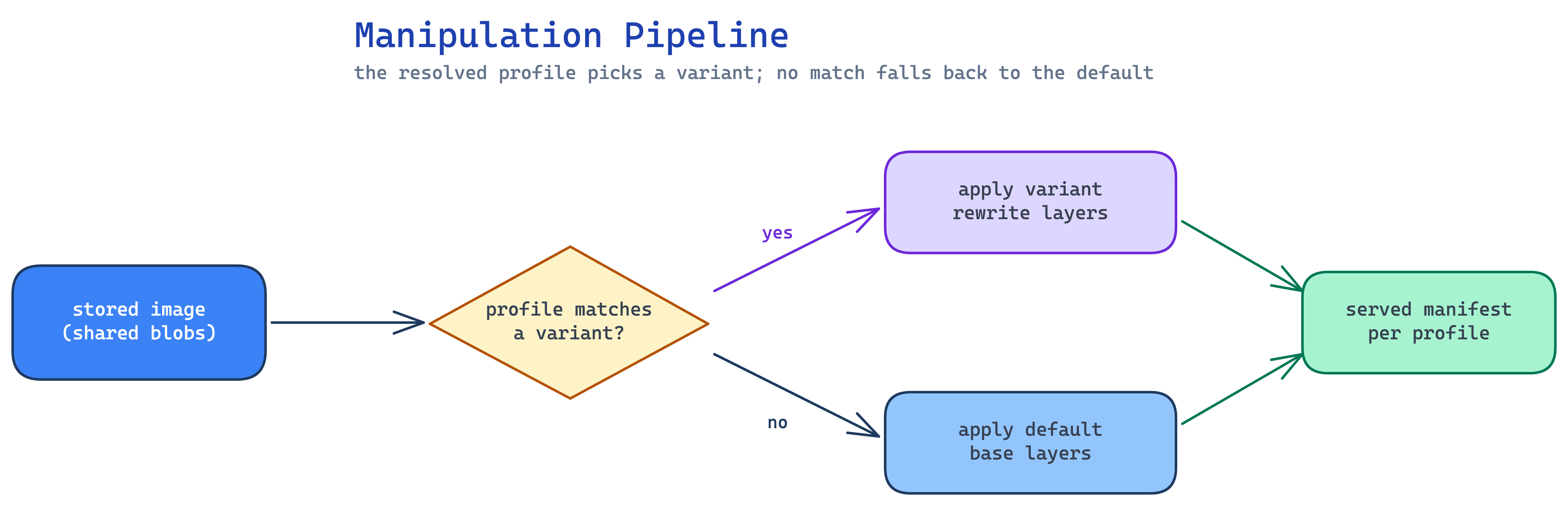
Source: docs/assets/diagrams/manipulation-pipeline.excalidraw (edit + re-render to update).